Password, login and account security
Sign in safely, change your password, and simple tips to keep your Quest account safe.
Your Quest login can open client names, trips, and prices. Treat it like a work account — only you should use it.
Simple habits that keep you safe
- Use a strong password that you do not use on other websites.
- Do not share your login with colleagues. Each person should have their own account when team invites are available.
- On a shared or public computer, always sign out when you finish.
- If you think someone else knows your password, change it right away under Settings → Security.
How to sign in
- 1
Open the real Quest website
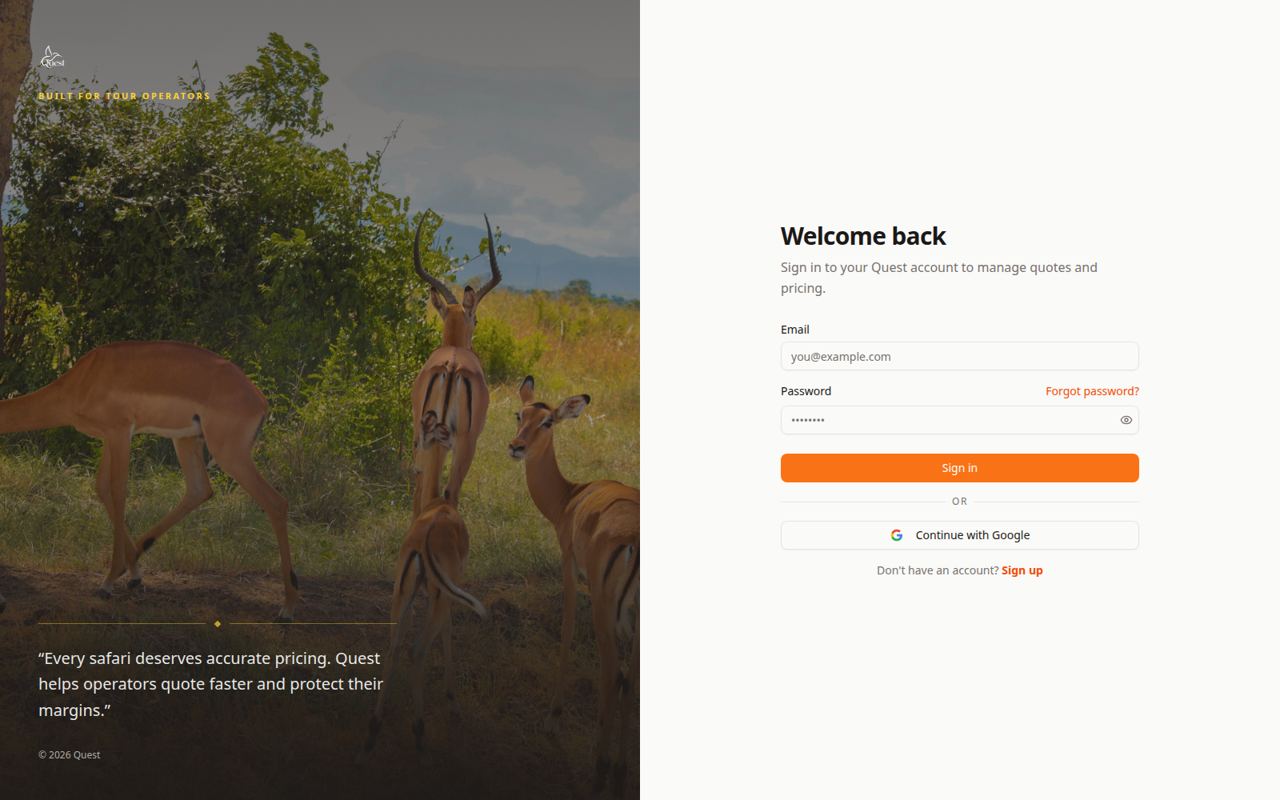
Sign in
Email and password on the official login page.
What the numbers mean
- 1
Your email
Email field or send-email controls for contacting the client.
- 2
Your password
Password and account security settings.
- 3
Sign in button
On the screen this is “Sign in button”. Use it while you: Open the real Quest website.
Only sign in on the official Quest site (the address should start with https://). Do not enter your password on links from unknown emails or messages.
- 1
- 2
Change your password
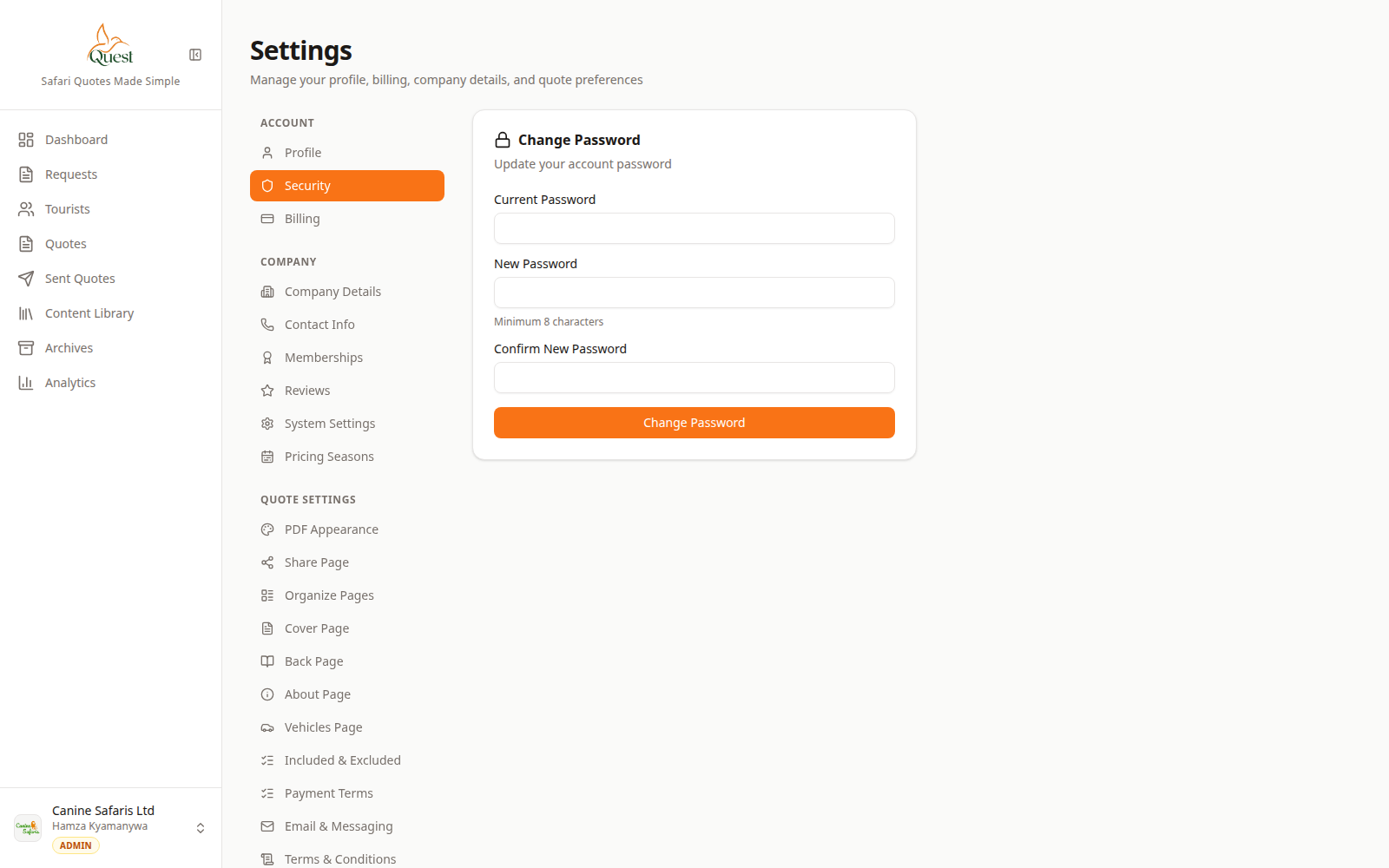
Security
Change password under Settings → Security.
What the numbers mean
- 1
Security settings
Password and account security settings.
After you are signed in, open your account menu (your name or photo, usually top-right) → Settings → Security. Choose a new password and save.
- 1
Was this helpful?