Create a client request
Log a new inquiry with traveller, dates, party size and budget.
A request is a client inquiry — who is travelling, when, and roughly what they want — before or while you build a full quote.
- 1
Start a new request
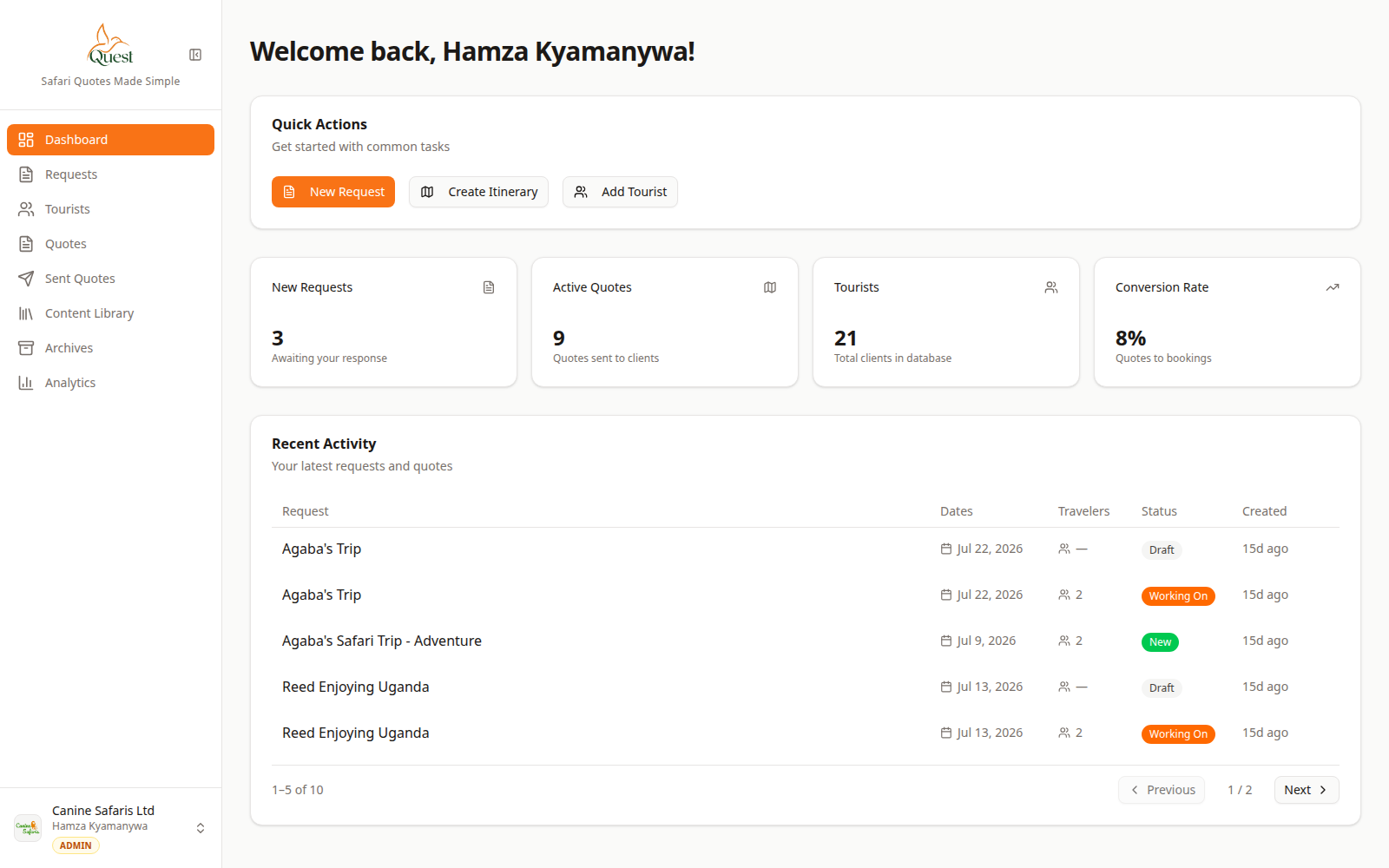
Dashboard
Use New Request under Quick Actions to start.
What the numbers mean
- 1
New Request button
Click this to open the New Travel Request form.
- 2
Requests in sidebar
Left navigation. Use Requests to see all inquiries anytime.
1. Sign in and open the Dashboard (or Requests in the sidebar).
2. Click New Request (orange button under Quick Actions, or + New Request on the Requests page).
3. You land on the New Travel Request form.
- 1
- 2
Fill in the client
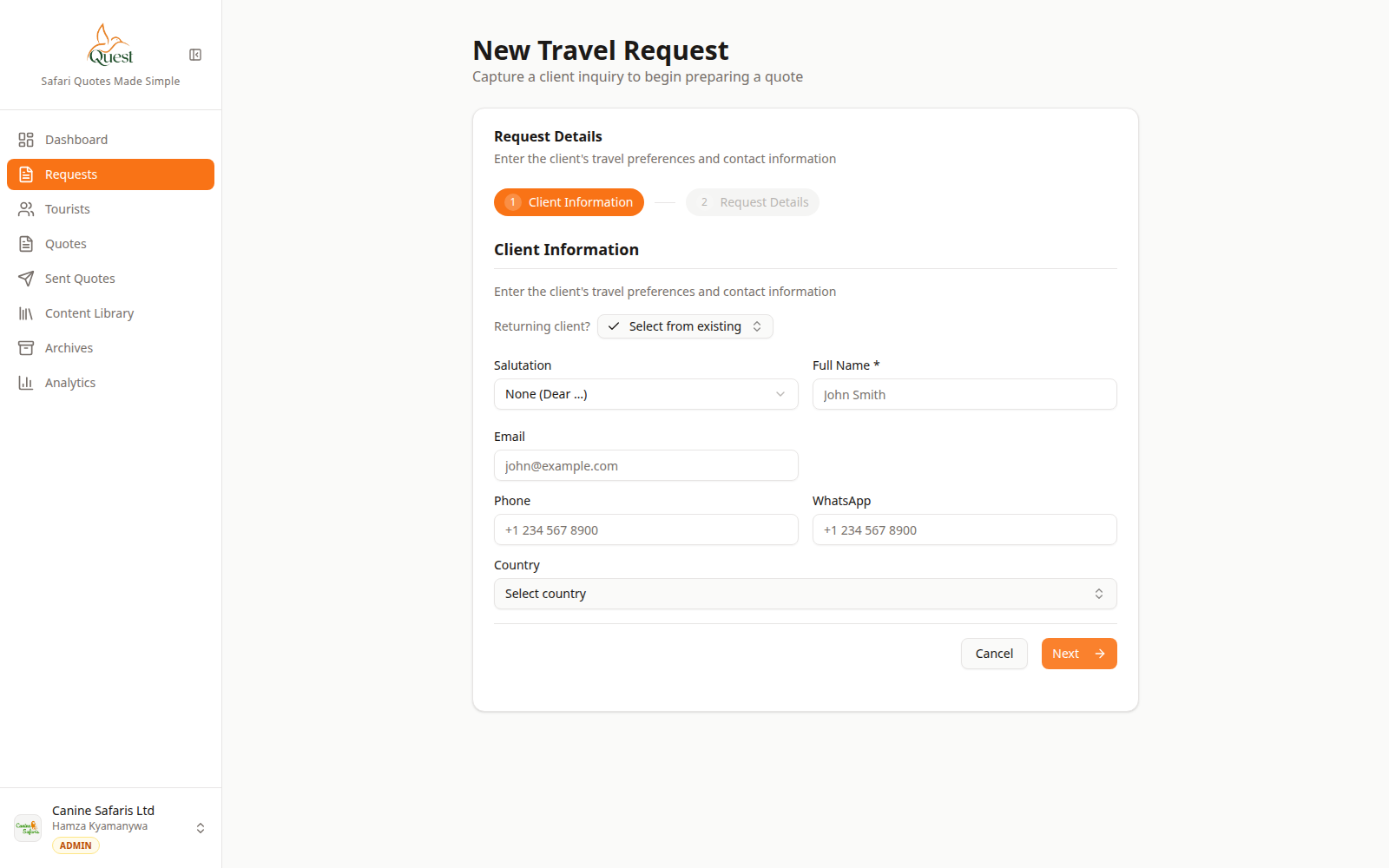
Client form
Name and contact first, then Next for trip details.
What the numbers mean
- 1
Full name
Required client name on the first form step.
- 2
Email
Client email for contact and sending proposals later.
- 3
Next button
Goes to the next form section (trip details). Keep going until you can save.
On Client Information:
1. Enter Full name (required).
2. Enter Email (and phone / WhatsApp if you have them).
3. Choose country if known.
4. Click Next to continue through trip details (dates, party size, budget, notes).
5. Save when the form is complete.
- 1
- 3
Find the request later
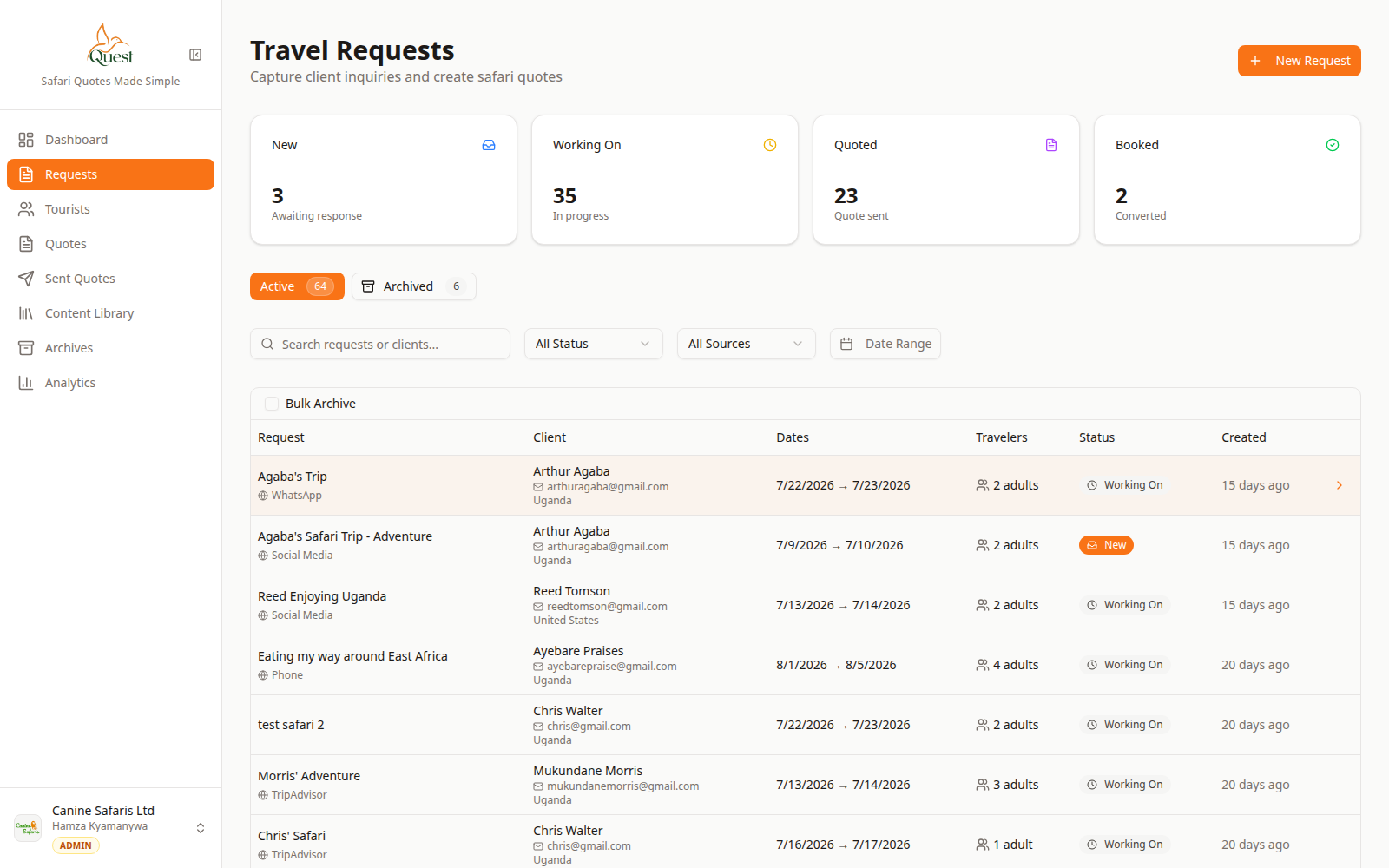
Requests list
All saved inquiries live here.
What the numbers mean
- 1
Requests sidebar
Left navigation. Use Requests to see all inquiries anytime.
- 2
+ New Request
Creates another request from the Requests page.
- 3
Requests table
All saved requests. Click a row to open it.
1. Open Requests in the left sidebar.
2. Your new request appears in the table (often status New or Working On).
3. Use search or status filters at the top if the list is long.
4. Click the row to open it, or continue to turn it into a quote (see related article).
- 1
Was this helpful?