Work with multiple currencies
Set a quote currency, manage exchange rates, and present totals in the client’s currency.
Quest can price a quote in different currencies (for example UGX or USD). You choose which currencies your company allows, set a default, manage exchange rates, and then pick the currency on each quote.
- 1
Company: which currencies you offer
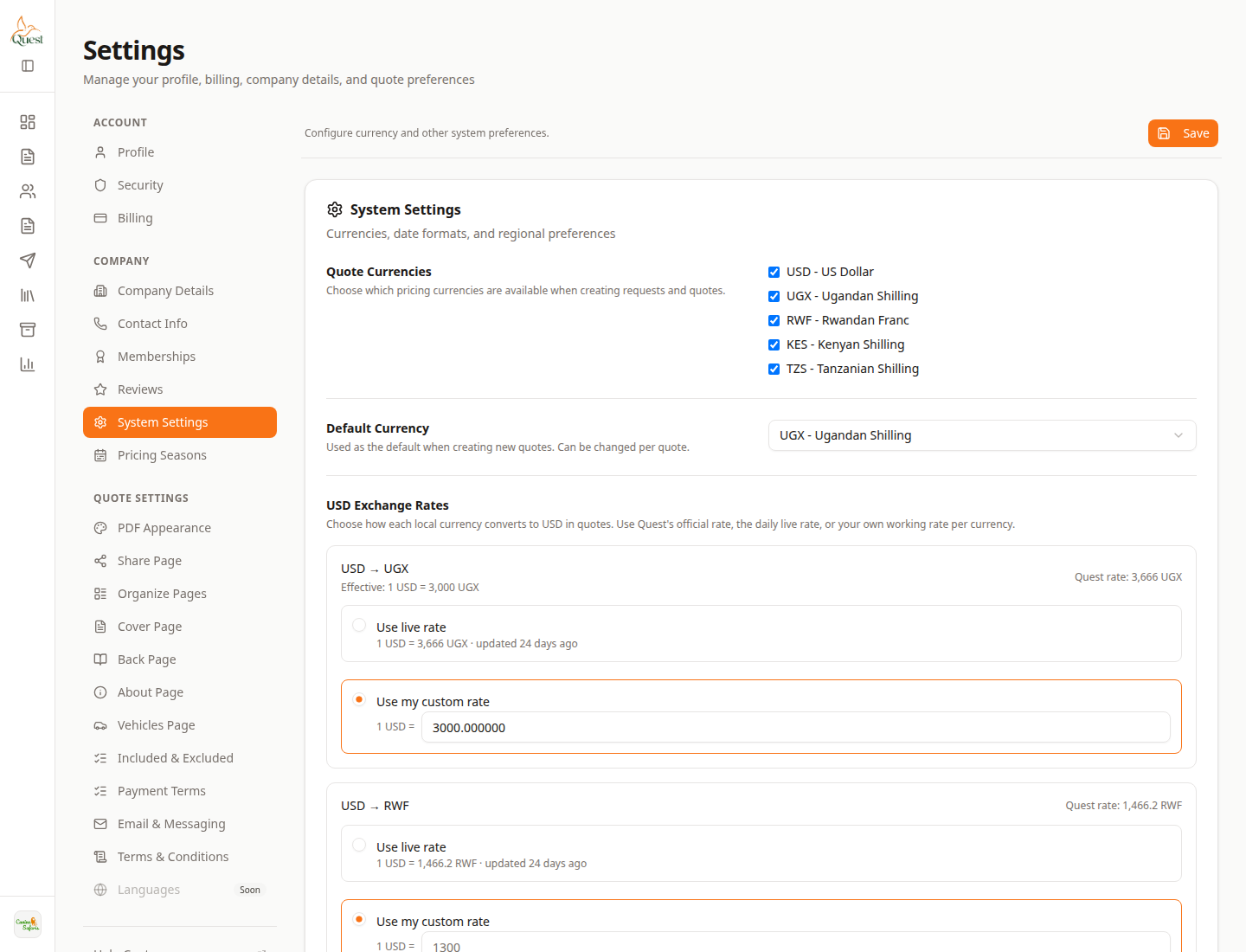
System Settings
Company default currencies and exchange rates.
What the numbers mean
- 1
System Settings
In the Settings left menu under Company. Open this tab for currency defaults — not Profile or Memberships.
- 2
Quote Currencies
Checkboxes for currencies available when creating requests and quotes.
- 3
Default currency & FX rates
Default for new quotes, plus how each currency converts (Quest rate, live rate, or your rate).
1. Open Settings (account menu, top-right).
2. Go to Company → System Settings.
3. Under Quote Currencies, tick the currencies staff can use on requests and quotes (for example UGX, USD, KES).
4. Set Default Currency for new quotes.
5. Review USD Exchange Rates (official, live, or your own rate per currency).
6. Click Save.
- 1
- 2
On a quote: set currency and exchange rate
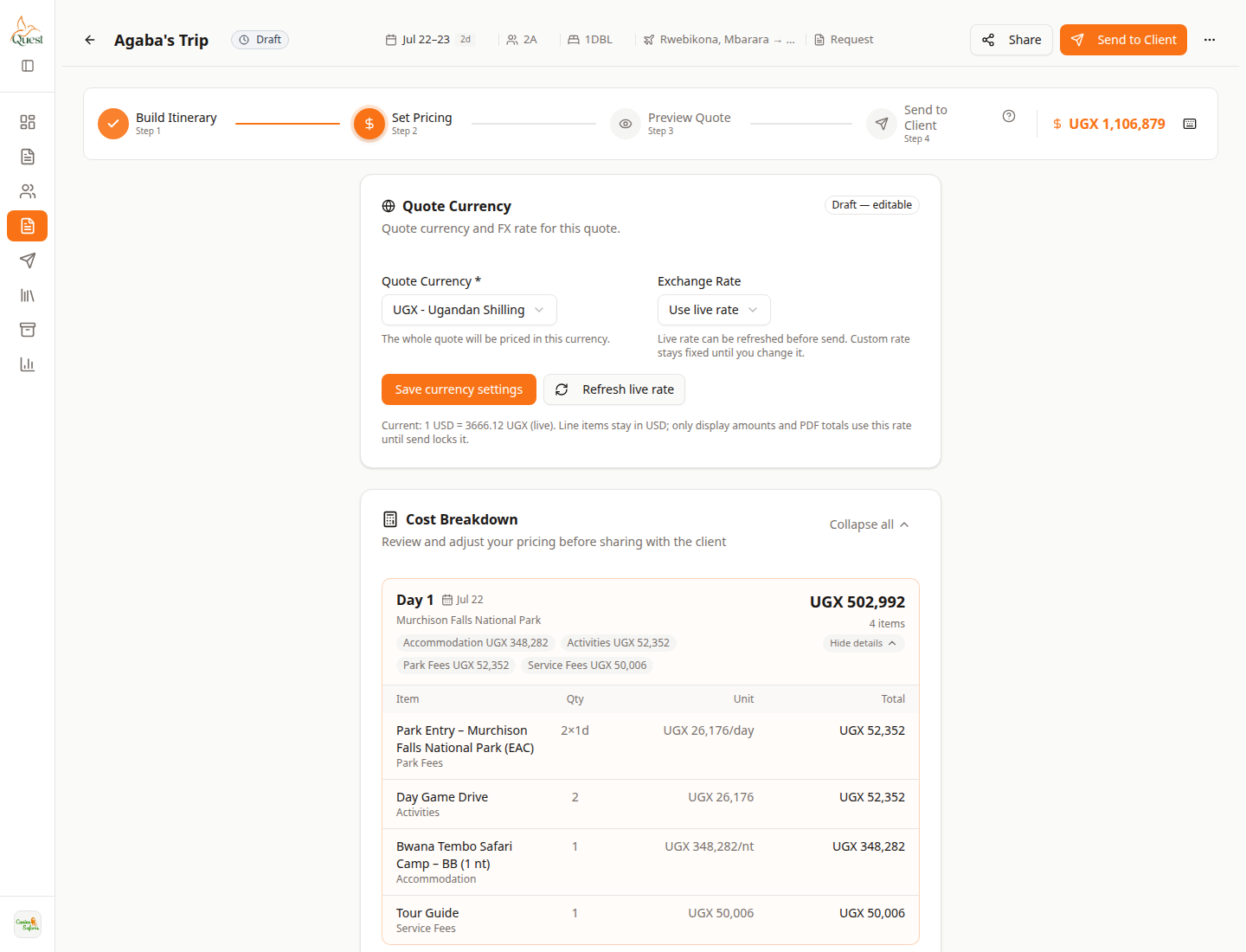
Set Pricing · Quote Currency
Per-quote currency and FX — this is the screen for multi-currency on a proposal.
What the numbers mean
- 1
Set Pricing step
Wizard step 2. Currency for the quote is configured here, not on Profile.
- 2
Quote Currency
Dropdown for the currency this whole quote is priced and shown in.
- 3
Exchange Rate
How foreign amounts convert for this quote (live vs custom). Save currency settings after changes.
1. Open a quote.
2. Go to Set Pricing (step 2). Tip: you can open `?step=pricing` on the quote URL if needed.
3. At the top, find the Quote Currency card.
4. Choose Quote Currency (for example UGX).
5. Choose Exchange Rate (live rate or custom) and save currency settings if prompted.
6. Confirm totals in the cost breakdown use that currency before Preview / Send.
- 1
Was this helpful?