Set markup, margins and rate overrides
Apply markup across a quote, override single rates, and read your margin live.
On Set Pricing, you review trip costs and set your markup % so the client total includes your margin. You can also adjust individual lines when needed.
- 1
Open Set Pricing
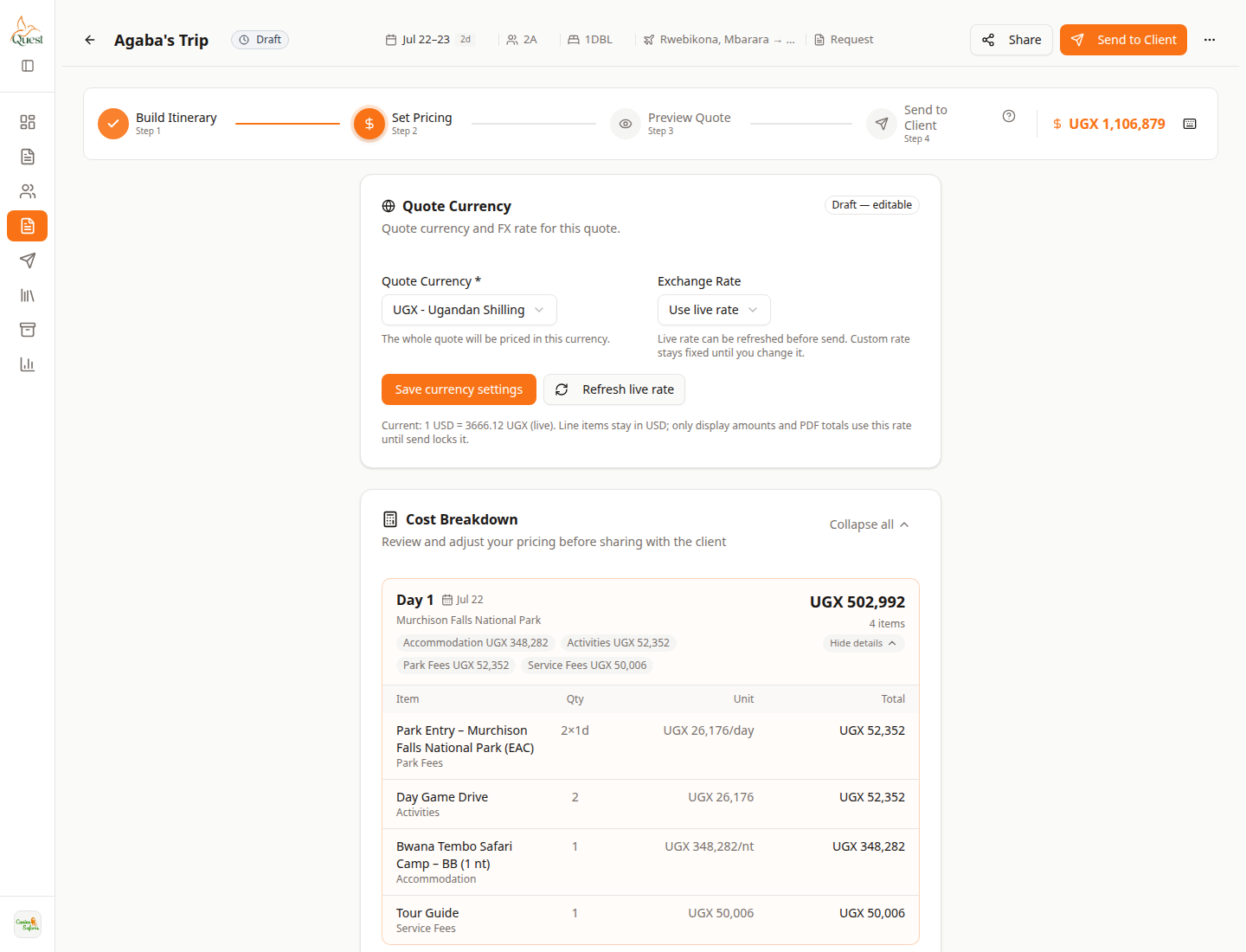
Set Pricing
Pricing step — currency on top, costs below, markup further down.
What the numbers mean
- 1
Set Pricing step
You must be on step 2 to edit markup. Build Itinerary is only for days and lines.
- 2
Cost Breakdown
Day-by-day costs before markup. Expand a day to see line items. Scroll down for markup %.
1. Open the quote from Quotes.
2. Click Set Pricing (step 2), or add `?step=pricing` to the quote URL.
3. You should see Quote Currency at the top, then Cost Breakdown, then markup controls.
- 1
- 2
Set markup % and save
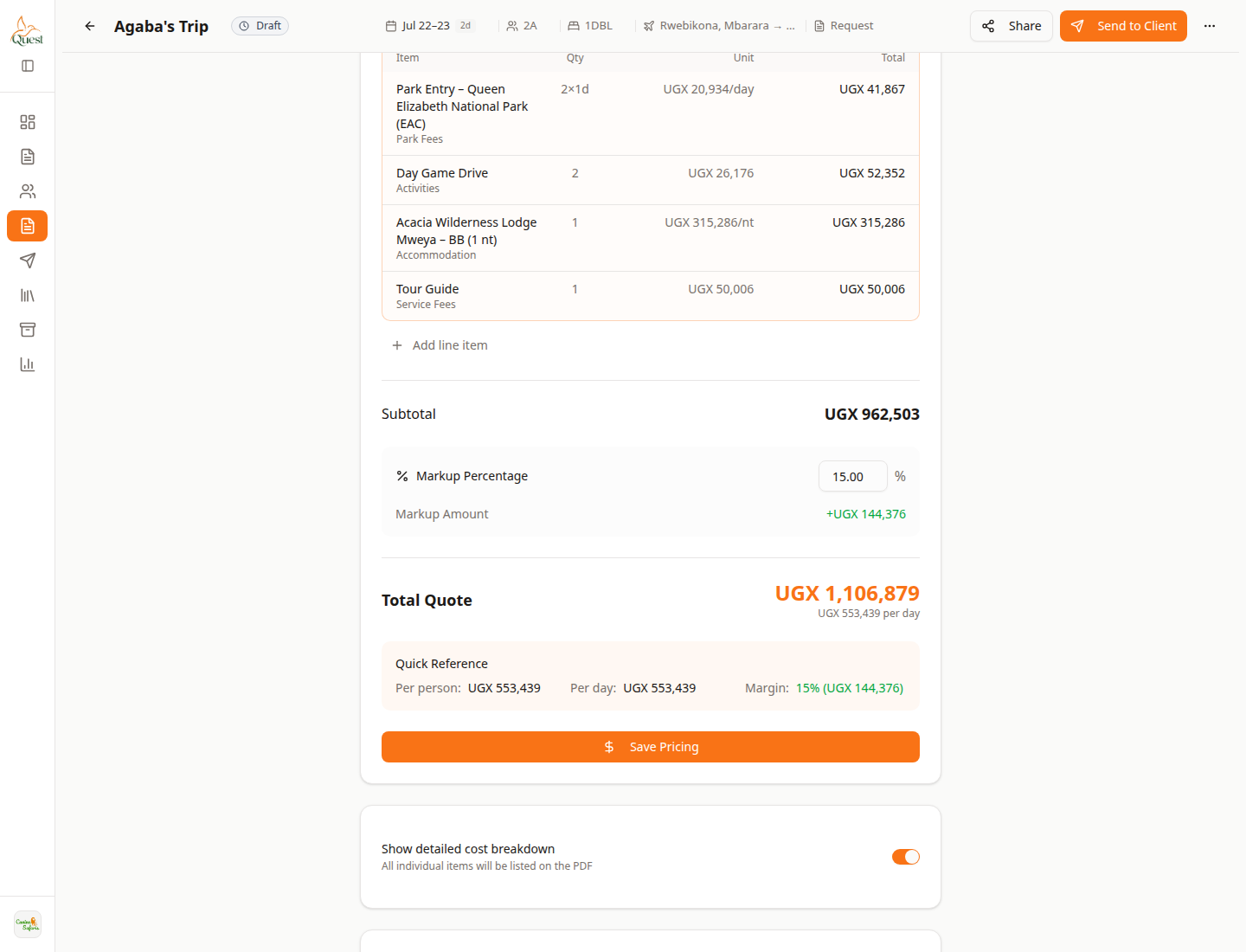
Markup controls
This is the markup UI — percentage, amount, total, and Save Pricing.
What the numbers mean
- 1
Markup Percentage
Type the margin % you want on top of subtotal. This is the main markup control.
- 2
Markup Amount
Money added by that percent (shown as +currency). Updates when you change the %.
- 3
Total Quote
Client total after markup. Confirm this before Preview or Send.
- 4
Save Pricing
Saves markup (and related pricing) on this quote. Click after you change the %.
1. Scroll to Markup Percentage.
2. Enter the percent (for example 15).
3. Check Markup Amount (added money) and Total Quote (what the client pays).
4. Use Quick Reference for per person / per day / margin if shown.
5. Click Save Pricing.
6. Optional: change a single line in Cost Breakdown when a rate override is available — that usually affects this quote only, not the whole Content Library.
- 1
Was this helpful?