Add accommodations and set board basis
Choose a lodge or camp, set room types, occupancy and meal plan.
Accommodations are where guests sleep that night (lodge, camp, hotel). You add them on the day card under Build Itinerary, then set room type and board basis (meals included).
- 1
Open the day on Build Itinerary
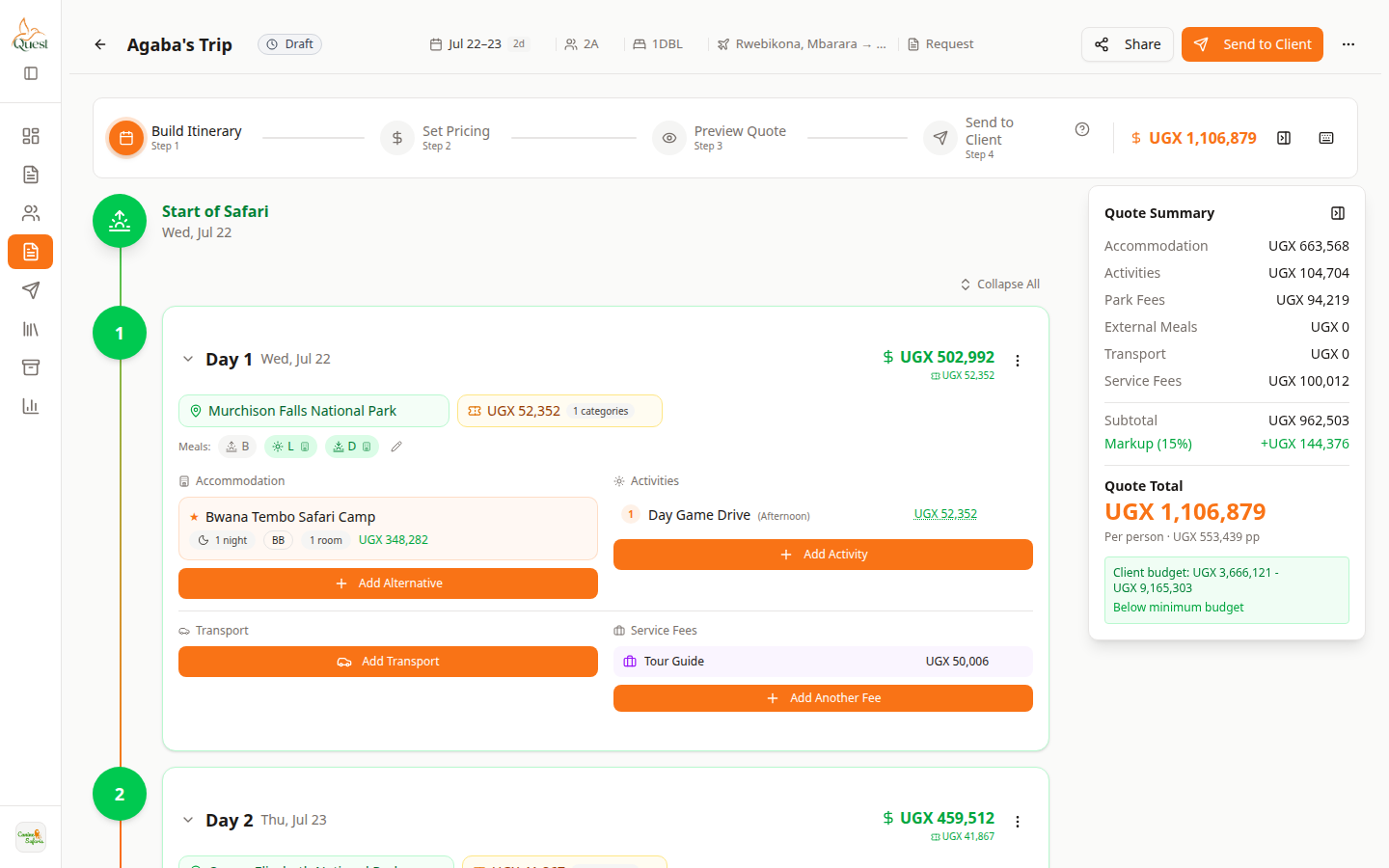
Day card
Accommodation sits on the left side of the day card.
What the numbers mean
- 1
Build Itinerary
Matches the red number on the screenshot: Build Itinerary.
- 2
Accommodation block
Matches the red number on the screenshot: Accommodation block.
- 3
+ Add Alternative
Matches the red number on the screenshot: + Add Alternative.
1. Open the quote.
2. Select Build Itinerary at the top.
3. Expand the day (for example Day 1).
- 1
- 2
Click + Add Alternative (or edit an existing stay)
Add stay
Use + Add Alternative to open the accommodation picker.
What the numbers mean
- 1
+ Add Alternative
Matches the red number on the screenshot: + Add Alternative.
Under Accommodation, click the orange + Add Alternative button to add a lodge or camp.
If a stay is already listed, click it to change rooms, dates, or board basis.
- 1
- 3
Choose the lodge and room details
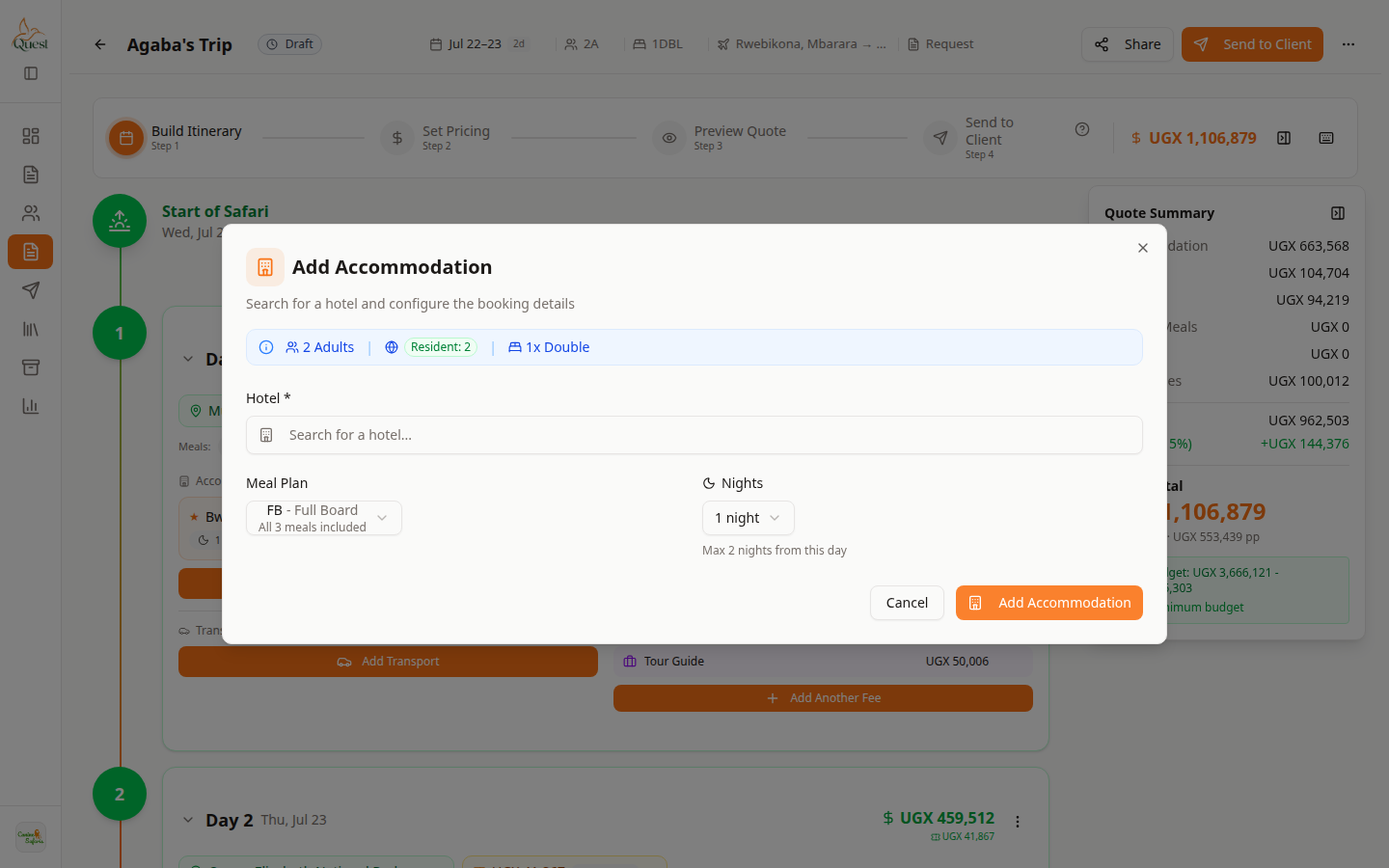
Accommodation dialog
Pick lodge, room, and board basis, then save.
What the numbers mean
- 1
Search / pick lodge
Matches the red number on the screenshot: Search / pick lodge.
- 2
Room & board basis
Matches the red number on the screenshot: Room & board basis.
In the dialog that opens:
1. Search or pick the accommodation from your library.
2. Choose room type and how many rooms.
3. Set board basis (for example FB, HB, BB — meals included with the stay).
4. Confirm nights / check-in details if shown.
5. Save / add to the day.
- 1
Was this helpful?