Add activities, game drives and excursions
Attach activities to a day with per-person or per-group pricing.
Activities are things guests do on a day — game drives, walks, boat trips, and similar. You add them on the day card under Build Itinerary, in the Activities block.
- 1
Open the day on Build Itinerary
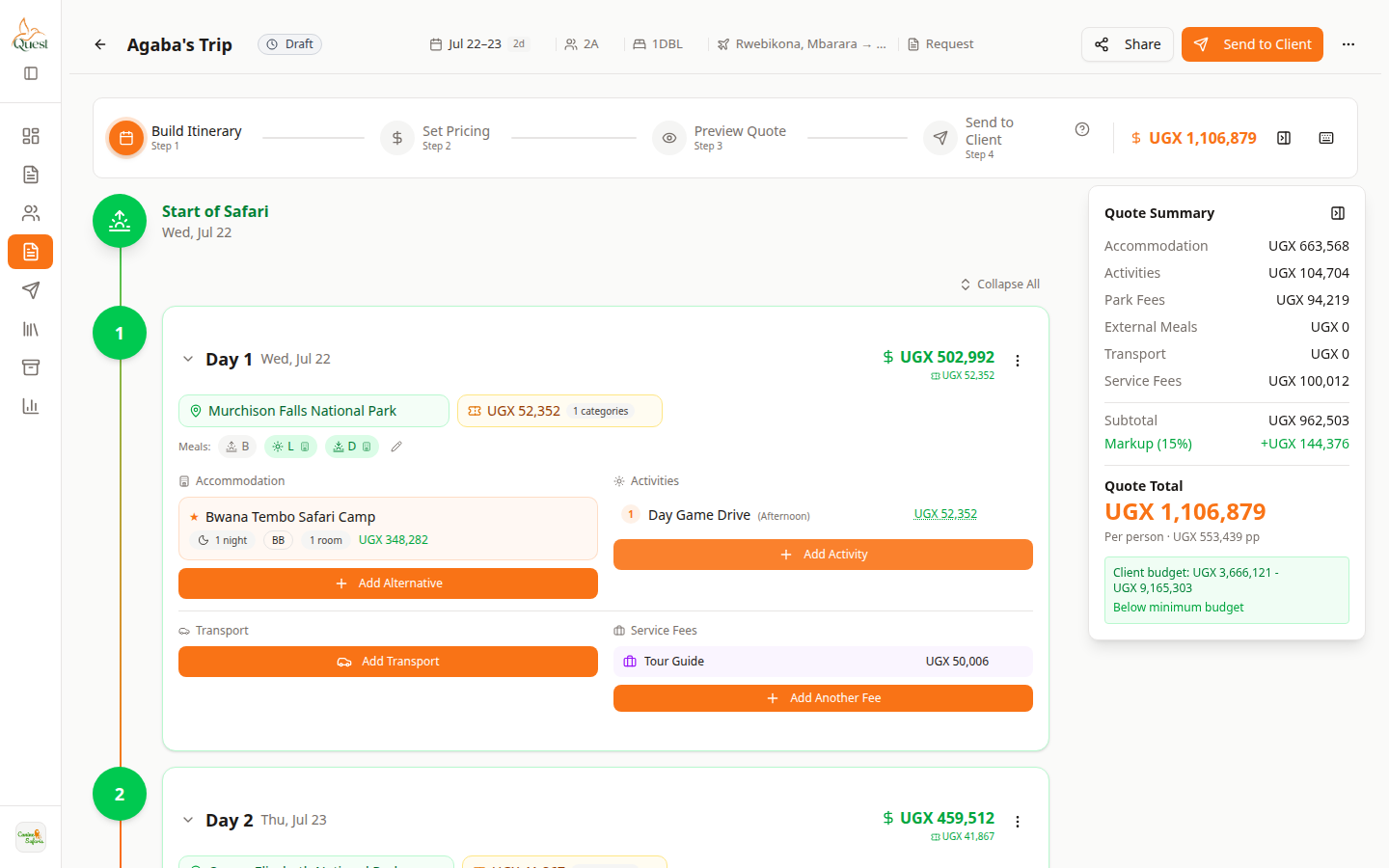
Day card
Activities sit on the day next to accommodation.
What the numbers mean
- 1
Build Itinerary
Matches the red number on the screenshot: Build Itinerary.
- 2
Activities block
Matches the red number on the screenshot: Activities block.
- 3
+ Add Activity
Matches the red number on the screenshot: + Add Activity.
1. Open the quote.
2. Select Build Itinerary at the top.
3. Expand the day you want.
- 1
- 2
Click + Add Activity
Add Activity
Orange + Add Activity opens the picker.
What the numbers mean
- 1
+ Add Activity
Matches the red number on the screenshot: + Add Activity.
In the Activities section of the day, click the orange + Add Activity button.
A dialog opens so you can pick from your Content Library or add a custom activity.
- 1
- 3
Choose the activity and pricing
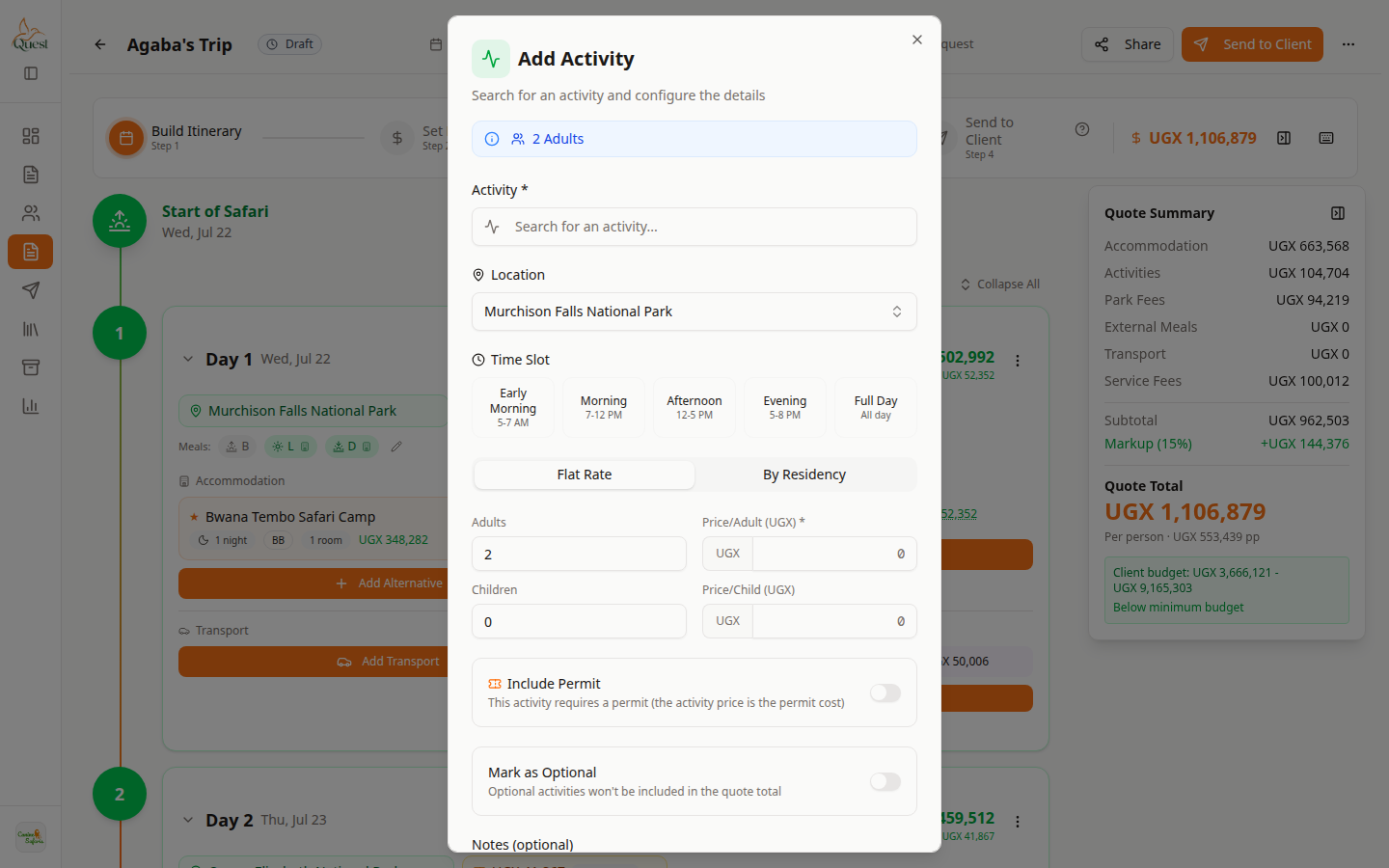
Activity dialog
Pick the activity and confirm price, then add it to the day.
What the numbers mean
- 1
Search / pick activity
Matches the red number on the screenshot: Search / pick activity.
- 2
Pricing details
Matches the red number on the screenshot: Pricing details.
In the dialog:
1. Search or select the activity (for example a game drive).
2. Check pricing (per person or per group, as shown).
3. Set quantity / guests if asked.
4. Save / add to the day.
- 1
Was this helpful?