Configure transport — routes, distances & apply
Plan road routes, save each leg, apply transport to Quote Summary, and troubleshoot distance or totals.
Configure Transport plans every road leg for the trip in one place — lodge to park, park to park, and stopovers along the way. You set your vehicle once, fine-tune each route, then add the total to the quote when you are ready.
- 1
Open Configure Transport
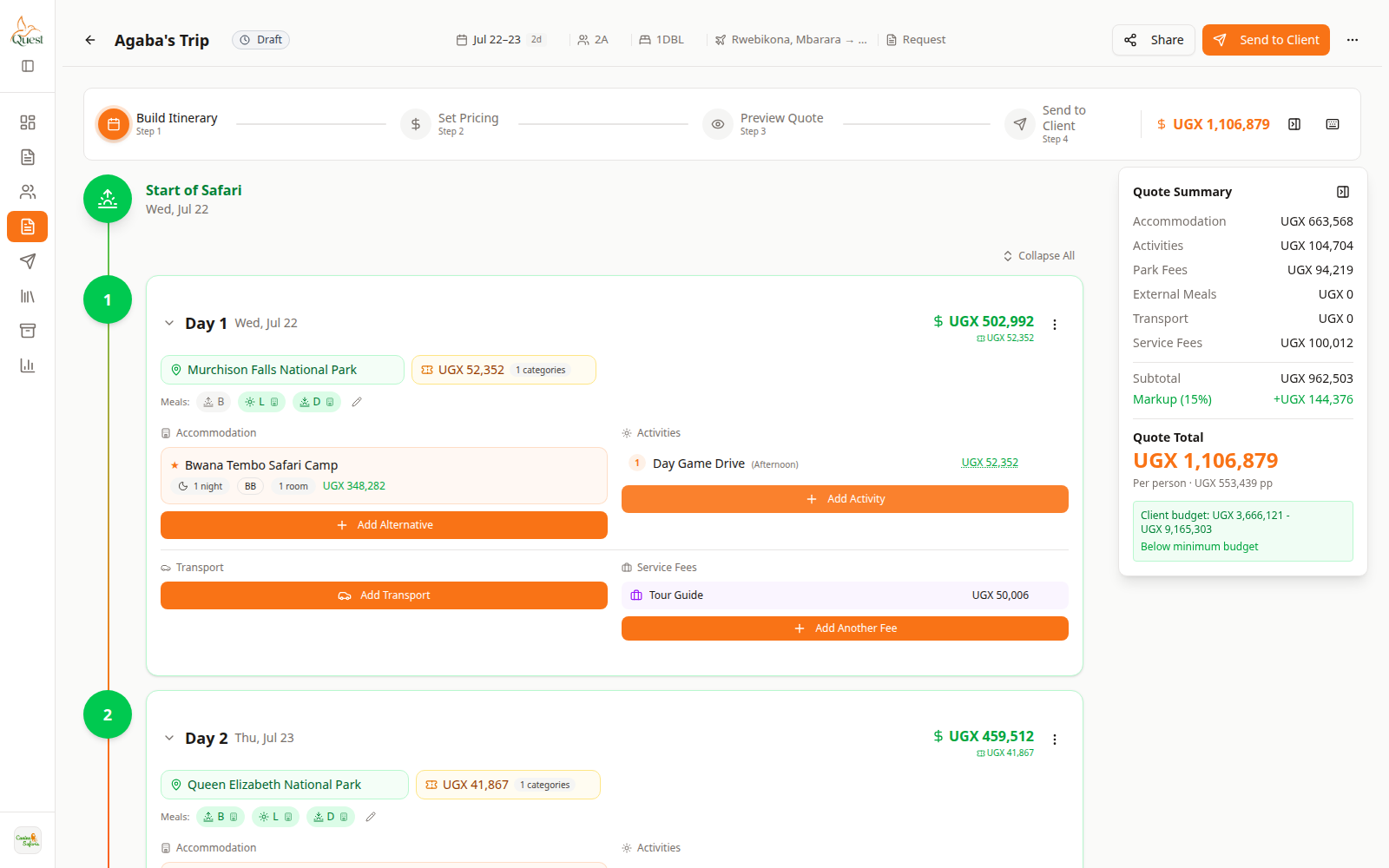
Build Itinerary
Transport checklist below the timeline.
What the numbers mean
- 1
Configure Transport
Opens the route planner for the whole trip.
Open the quote and go to Build Itinerary.
Scroll below the day cards to the transport checklist and click Configure Transport.
You can also jump here from wizard warnings when transport still needs attention.
Tip: use the ? icon in the modal header anytime to return to this guide.
- 1
- 2
Set up your road vehicle
Transport Settings
Set your road vehicle before editing routes.
What the numbers mean
- 1
Transport Settings
Vehicle defaults for this quote.
In the modal toolbar, open Transport Settings.
Under Road, choose your provider, vehicle type, fuel details, and any default rates.
Click Save in Transport Settings. This unlocks route cards for the trip.
Charter flights can be noted for later — full charter costing is coming soon. Road transport is fully supported today.
- 1
- 3
Configure each route
Routes
One card per leg — edit, then Save each route.
What the numbers mean
- 1
Route card
Endpoints, stopovers, distance, and cost for this leg.
- 2
Save route
Confirms this leg and adds it to the modal footer total.
- 3
Route map
Live preview of the path and per-leg cost while you edit.
Select a route card on the left. Each card is one leg between two points on your itinerary.
Check pickup and drop-off. Add stopovers when guests stop en route — each stop can add km when it has map coordinates or manual km.
Set distance so the leg can be priced:
• Automatic — Mapbox calculates driving distance when both endpoints (and stopovers) have map coordinates.
• Manual km — enter distance yourself when routing is unavailable or you prefer a fixed figure.
Review the cost breakdown on the card (base rental, fuel, park entrance where applicable).
Click Save on the route card when that leg is ready. Repeat for every road route.
- 1
- 4
Watch the transport total grow
Footer total
Saved routes only — grows as you Save each leg.
What the numbers mean
- 1
Transport cost summary
Trip total from saved road routes.
At the bottom of the modal, open Transport cost summary.
Before your first saved route, the footer shows: Save a route to see your transport total.
After each Save, that leg's amount is added to the footer. Unsaved edits show as live previews on the card and map only — they do not change the footer until you save.
Expand the summary to see each route line and how many legs are saved.
- 1
- 5
Save & apply to quote
Apply
Publish transport to Quote Summary.
What the numbers mean
- 1
Save & apply to quote
Adds transport to Quote Summary and pricing.
- 2
Quote Summary
Transport line appears after the first apply.
When every road route is saved and has billable distance (Mapbox routing or manual km), click Save & apply to quote.
A dialog shows the calculated transport total. Choose:
• Use calculated total — apply the sum from your saved routes.
• Override total — enter a different transport figure; Quest spreads it across your routes proportionally.
After apply, the Transport line appears in Quote Summary for the first time (unless this quote already had a legacy transport amount). Markup on Set Pricing applies on top of this total.
- 1
- 6
Optional: save a browser draft
Use Save draft & close to keep in-progress edits on this device only.
Next time you open Configure Transport here, Quest offers to restore the draft.
Drafts do not sync to other browsers or teammates. Save each route and Save & apply when you want quote totals updated for everyone.
Common questions
- Why doesn't Quote Summary show transport yet? — You have saved routes in the modal but not applied them. Use Save & apply to quote.
- Why is the footer total empty? — No routes are saved yet. Click Save on at least one completed route card.
- Why can't I apply? — Every road route must be saved and have driving distance (Mapbox) or manual km. Check for warnings on unsaved or incomplete cards.
- Does per-route Save update the client price? — No. Only Save & apply to quote updates Quote Summary and pricing.
- What if I changed the itinerary? — Use the refresh control in the modal so routes catch up with new days or destinations, then re-save and apply.
- Can I work on transport later? — Yes. Save draft & close on this browser, or save individual routes and apply when the trip is final.
Was this helpful?