Client Delivery & Email SendingSending
Download or print a proposal as PDF
Export a polished PDF for offline sharing or printing.
Quest Team2 min readUpdated 2 Aug 2026
Preview the proposal as PDF on Preview Quote. Clean branded download may require Pro.
- 1
Open Preview Quote
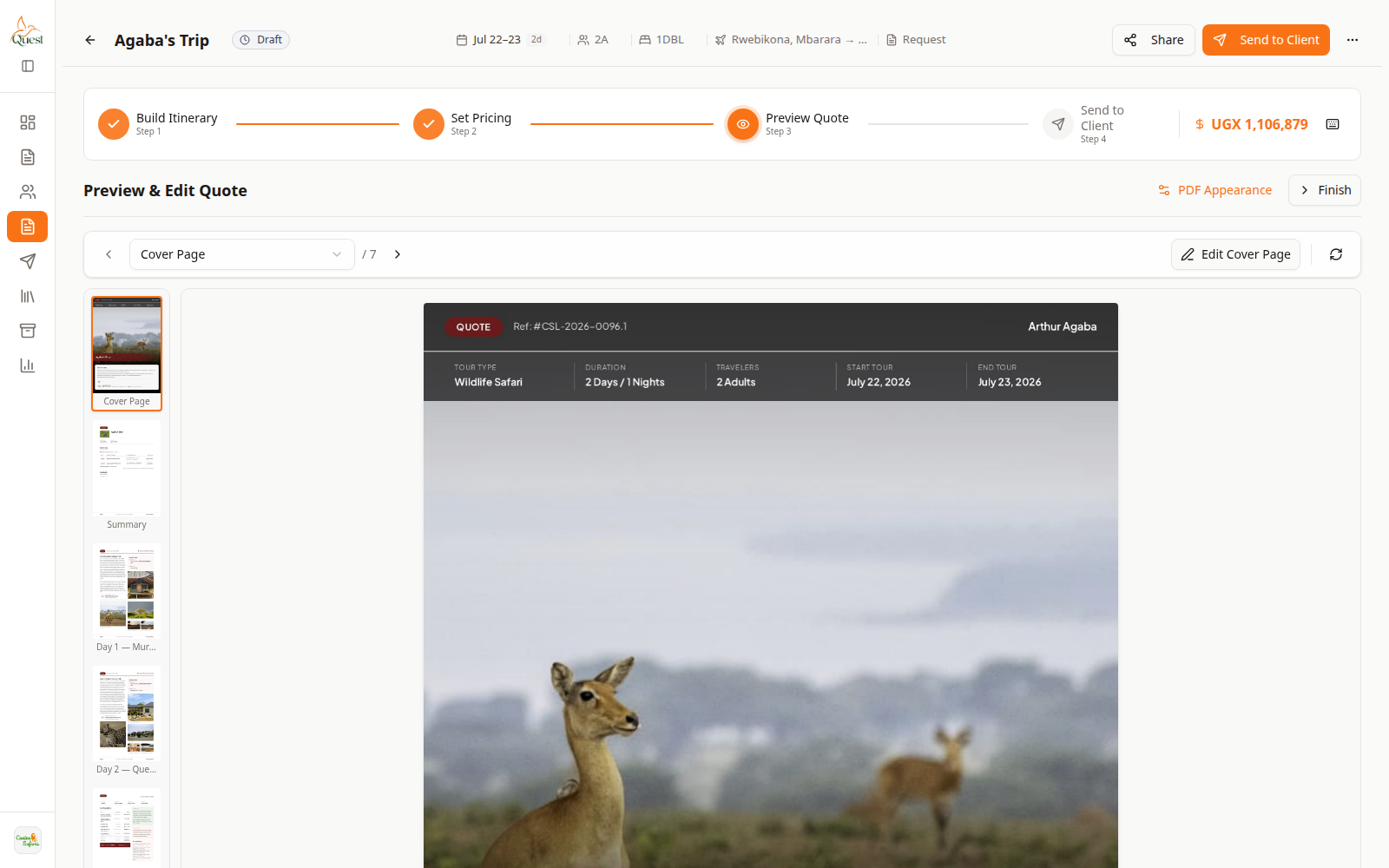
Preview Quote
PDF-style preview.
What the numbers mean
- 1
Preview Quote step
Step 3 — review before send.
- 2
PDF canvas
Scrollable preview of the client document.
In the quote wizard, click Preview Quote (step 3) and wait for the canvas to load.
- 1
- 2
Download or print
Preview
Export actions on preview.
What the numbers mean
- 1
Document preview
What you download/print.
Use download/print controls on the preview when available.
If download is blocked, check your plan under Billing — clean PDF download is a Pro feature.
- 1
Was this helpful?