Send a proposal by email
Generate a branded proposal and email it to your client from inside Quest.
Send a proposal by email from the quote's Send to Client step. Pro/trial access may be required for full email delivery.
- 1
Open Send to Client
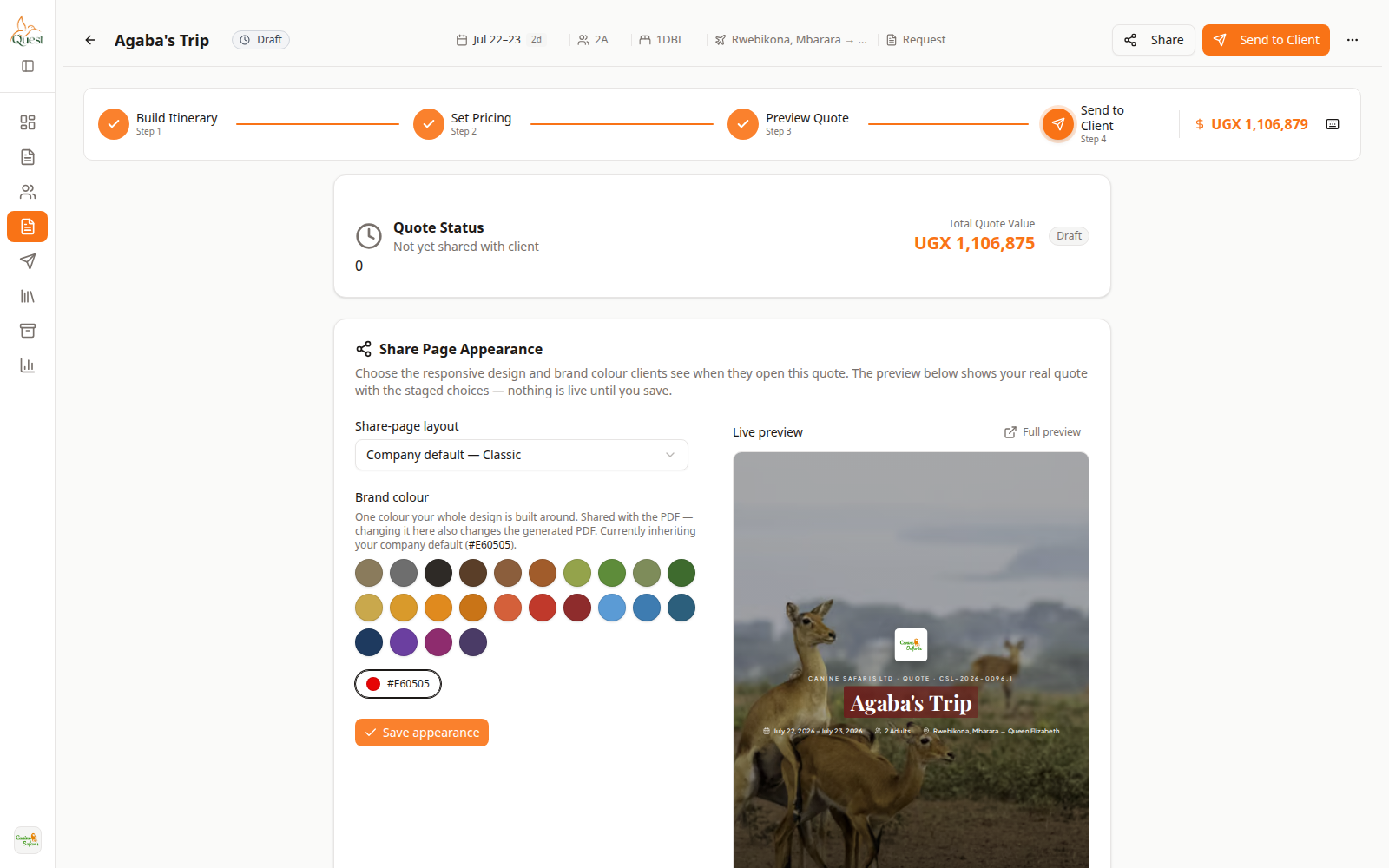
Send to Client
Delivery step.
What the numbers mean
- 1
Send to Client
Wizard step where email and share happen.
- 2
Email / send form
Recipient, message, PDF attach, and send actions.
1. Open the quote.
2. Click Send to Client (step 4), or finish Preview and continue.
3. Confirm the client email and message.
- 1
- 2
Send and confirm
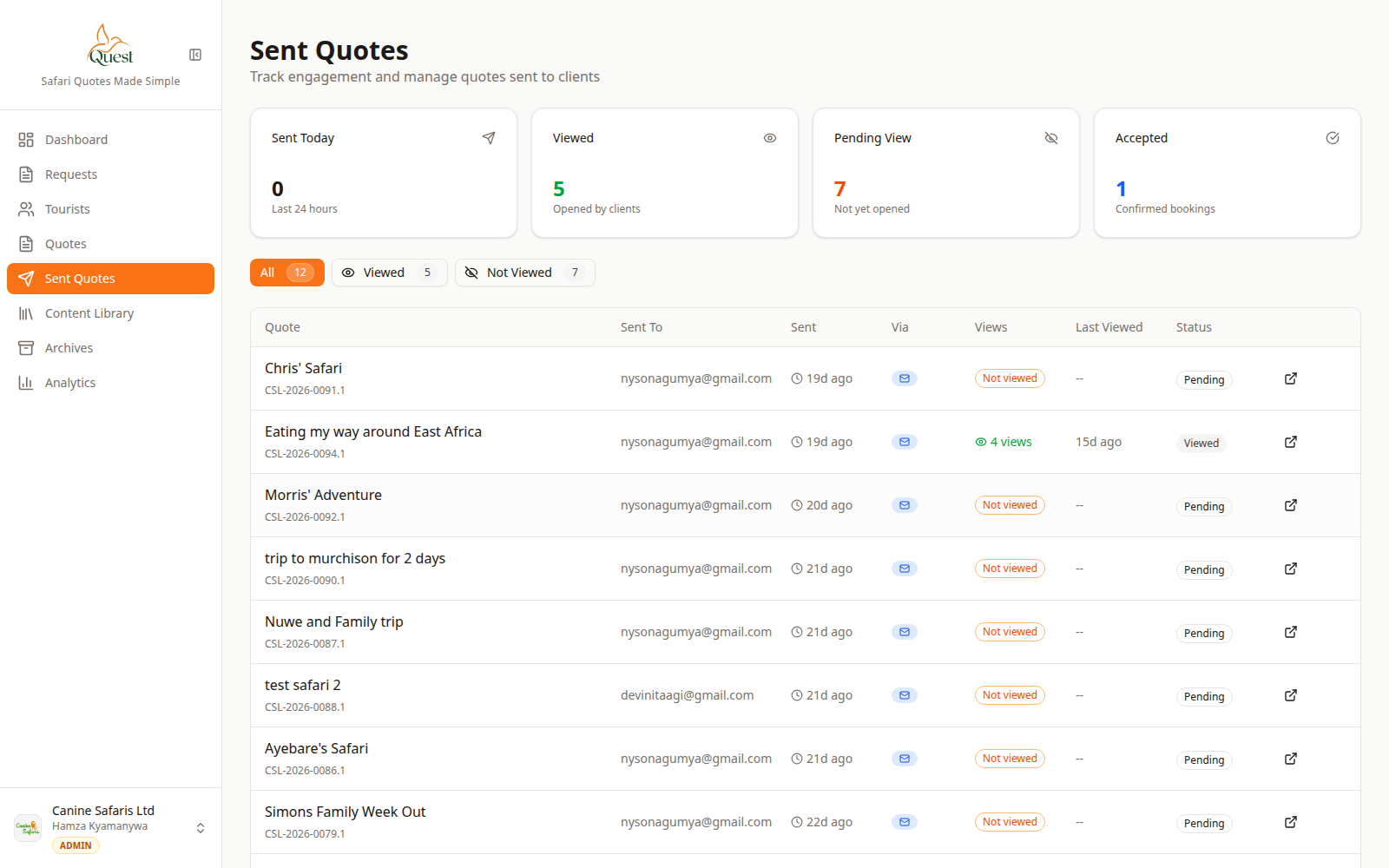
Sent Quotes
Delivered proposals.
What the numbers mean
- 1
Sent Quotes
Sidebar list of delivered quotes.
- 2
Sent table
Open a sent quote to resend or create a new version.
Click send and wait for success. Check Sent Quotes afterwards.
If send is blocked, check Billing / plan — professional email output is a Pro capability.
- 1
Was this helpful?