Client Delivery & Email SendingShare experience
Share-page layouts for client links
Atlas, Lagoon, Noir, Solstice, Verde, and Classic — independent from PDF packs.
Quest Team5 min readUpdated 2 Aug 2026
Share-page layouts control how the client link looks. Configure defaults under Settings → Quote → Share Page, and pick a layout on Send when offered.
- 1
Company default share style
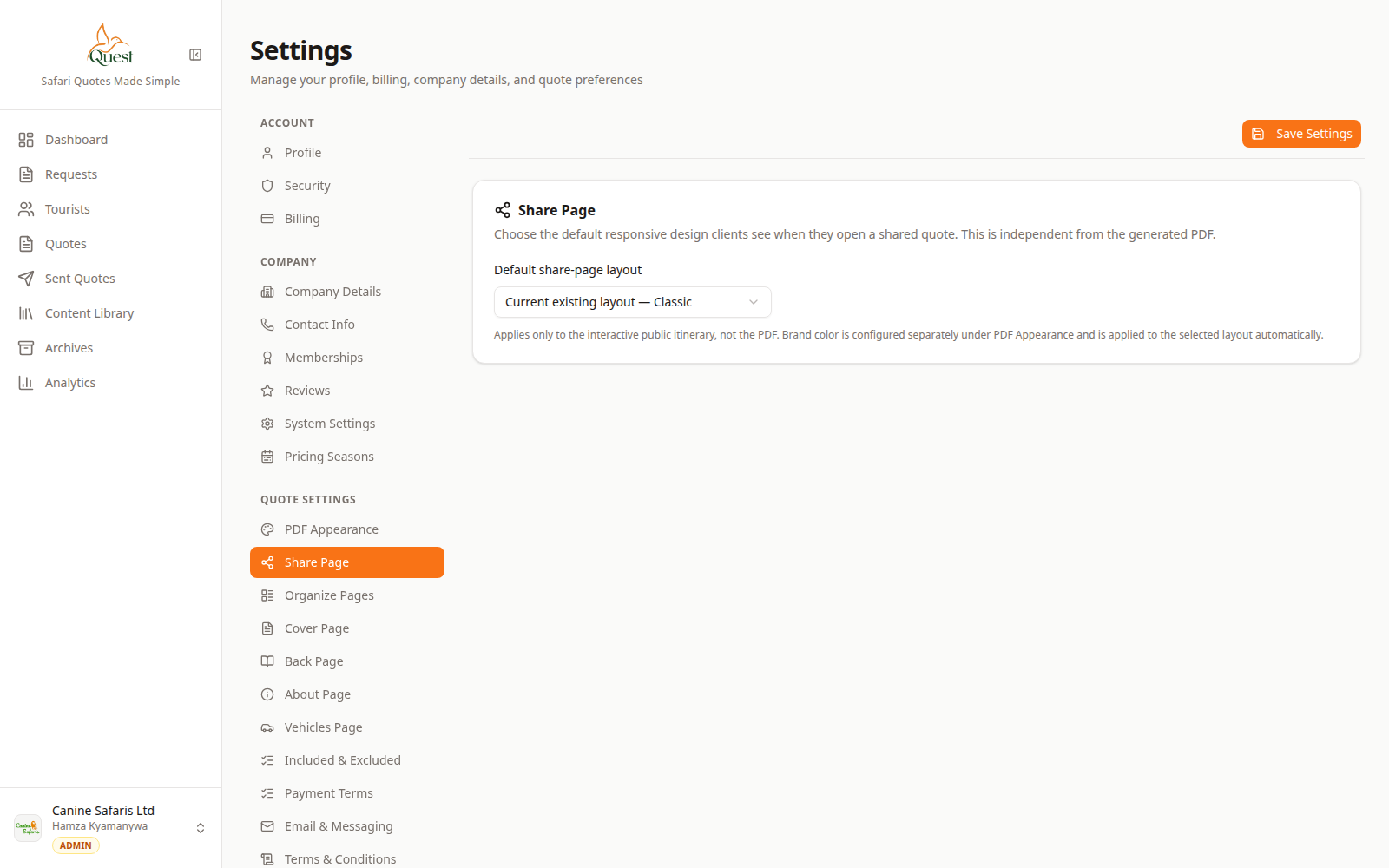
Share Page
Default client link appearance.
What the numbers mean
- 1
Share Page settings
Default layout for client links.
Settings → Quote settings → Share Page. Choose layout/options and save.
- 1
- 2
Per quote on Send
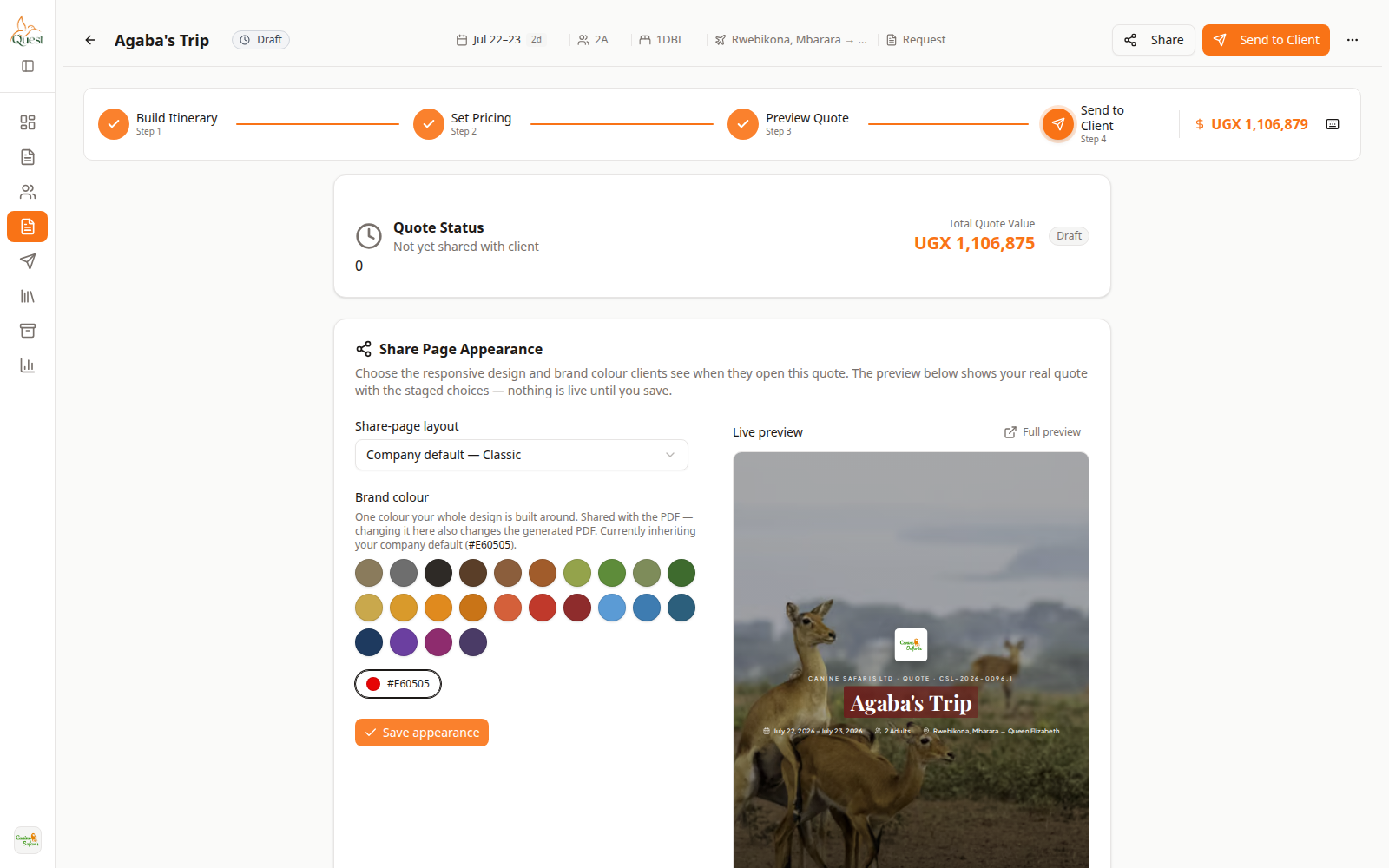
Send
Layout choice at send time.
What the numbers mean
- 1
Send / layout controls
Pick how this quote’s link is presented.
On Send to Client, select a share layout if the step shows a layout picker, then send or copy link.
- 1
Was this helpful?