A tour of your Quest dashboard
Sidebar, Quick Actions, stats, Quotes, and Content Library as they appear today.
The Dashboard is the home screen after login. Use it to see activity and jump into common tasks.
- 1
Read the home layout
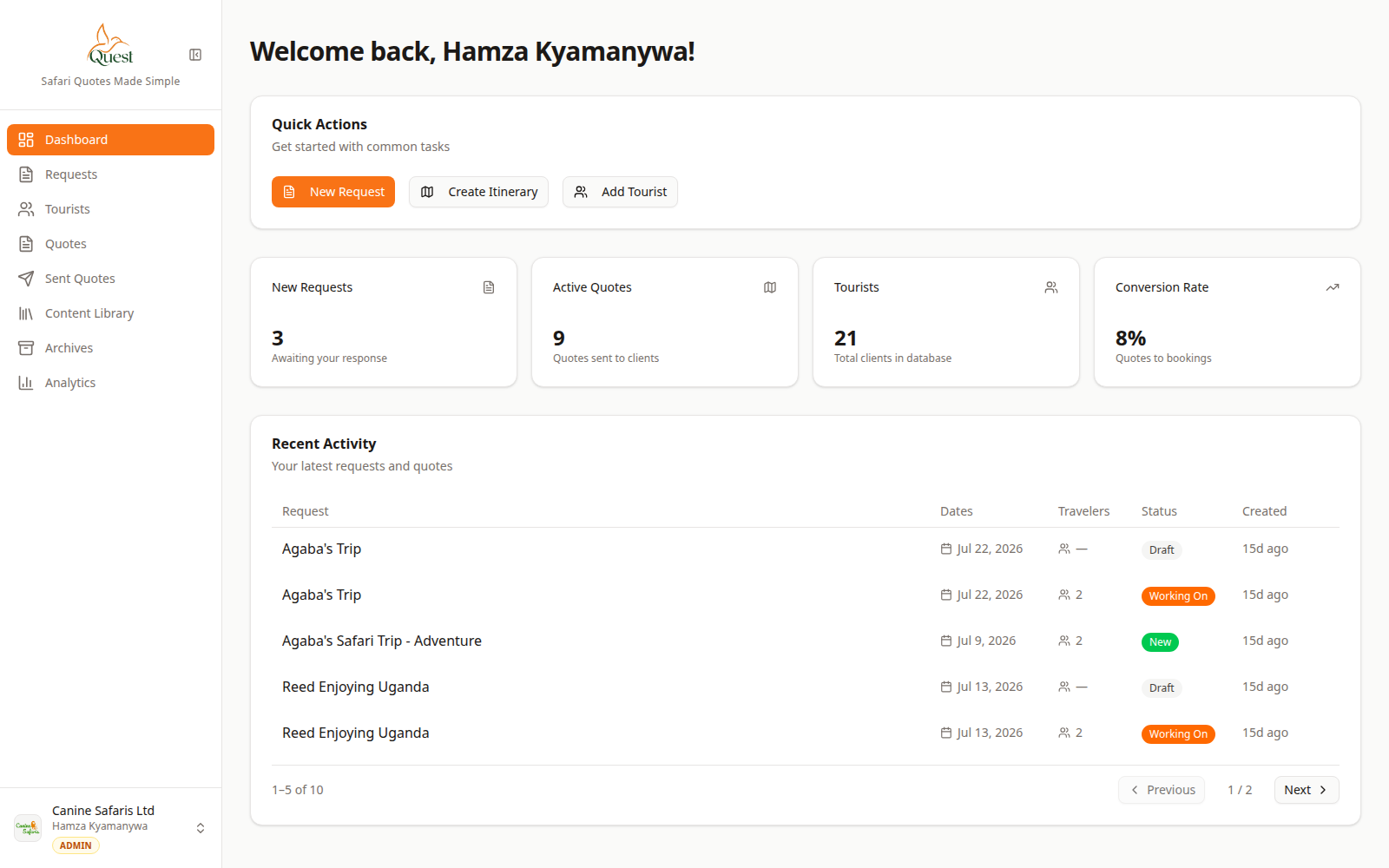
Dashboard
Main operator home.
What the numbers mean
- 1
Stats cards
At-a-glance counts for your workspace.
- 2
Quick Actions
Buttons like New Request to start work without digging through menus.
- 3
Sidebar
Go to Requests, Quotes, Tourists, Library, Archives, Analytics, Settings.
1. Stats cards show counts (requests, quotes, etc.).
2. Quick Actions start frequent tasks.
3. Recent activity lists latest changes.
4. The left sidebar reaches every main module.
- 1
- 2
Start work from Quick Actions or sidebar
Quick Actions
Fast entry points.
What the numbers mean
- 1
New Request
Opens the client inquiry form.
- 2
Quotes (sidebar)
Open all draft and active quotes.
Use New Request for a new inquiry, or open Quotes / Requests from the sidebar if you already know where you are going.
- 1
Was this helpful?